Schedule Change Notifications: Setup Guide for Care Facilities

Schedule Change Notifications: Setup Guide for Care Facilities
A good schedule change notification tells the right person what changed, when it takes effect and what to do next, on a channel they actually check, and it records that they saw it. If you run a nursing home or skilled nursing facility, the fastest way to get there is to send changes from a scheduling tool to staff phones, define who is alerted for which change, and track confirmations. Calendar apps can alert you to edits, but a care floor needs more than that.
This guide covers both sides of the keyword: how individual staff can get (and fix) schedule alerts on their phones, and how administrators can build a notification process that holds up on a busy unit and under predictive scheduling rules.
TL;DR
- Notify on every change to a posted schedule: a moved shift, a canceled shift, an added shift or a changed location. Changes an employee asks for, like a shift trade, usually need confirmation, not a legal notice.
- Use a written, trackable channel (push, text or email) and ask staff to confirm receipt. Confirming receipt is not agreeing to the change.
- Know your local rules. San Francisco, Oregon and Connecticut each set their own advance notice and change-notice requirements, and many of these laws target specific industries.
- Missing alerts are usually a settings problem: app permissions, quiet modes or per-calendar notification defaults.
- Keep alert groups tight. Telling everyone about everything trains people to ignore the phone.
Table of Contents
- What counts as a schedule change worth a notification
- The notice rules that shape your process
- What a complete notification says
- Who should be notified, and when
- Choosing the channel: push, text or email
- Letting staff control when alerts arrive
- When the notification never shows up
- What we believe about schedule change alerts
- Building the process in five steps
- Send changes from one phone-first place
- FAQ
- Sources
What counts as a schedule change worth a notification
Start by deciding what triggers an alert. If the answer is “whatever the scheduler remembers to text,” you have an improvised process, and it will fail on the weekend.
The most precise definitions come from the law. Under the San Francisco Fair Workweek Ordinance, notice applies to any change to a schedule that has already been posted or transmitted. That includes moving a shift to another date or time, canceling a shift, or requiring someone to come in for a shift they were not scheduled for. The ordinance does not cover changes the employee requests, such as sick leave, time off, shift trades or extra shifts.
Connecticut’s 2024 Predictable Scheduling bill, as summarized in the same research, is broader in wording. Its “work schedule change” includes adding or reducing scheduled hours, canceling a shift or part of a shift, changing a shift’s date, time or location, or scheduling someone for an on-call shift.
A practical trigger list for a care facility:
- A shift is added, removed, shortened or extended
- Start or end time moves
- Unit, floor or location changes
- An on-call shift is created, activated or released
- A shift swap is approved or declined
- A published schedule is revised after posting
- A callout needs coverage and a shift is open
That last item matters in care settings. A peer-reviewed study on work schedule patching in health care found that for callouts, schedulers either called around at random or gave employees an equal opportunity to volunteer their phone numbers. Both are slow and uneven. A defined open-shift alert, sent to a defined group, replaces the phone tree.
The notice rules that shape your process
Schedule change notification is not only a courtesy. Depending on where you operate, it can be a legal duty. Always confirm whether a law covers your facility, because many apply only to certain industries and employer sizes.
Examples from three jurisdictions
| Jurisdiction | Advance notice of schedule | How changes must be communicated |
|---|---|---|
| San Francisco | At least two weeks, posted conspicuously or sent electronically | In person, phone call, email, text message or other electronic communication |
| Oregon | Written schedule at least 14 calendar days before the first scheduled day | Timely notice by in-person conversation, phone, email, text or another accessible format |
| Connecticut (2024 bill) | Written notice as soon as possible, before the change takes effect | Posted schedule revised within 24 hours after the change |
Sources: the San Francisco ordinance, Section 42.4, and the Oregon Bureau of Labor and Industries for Oregon. The Connecticut row comes from the bill as described in the San Francisco ordinance source’s research summary, so check the enacted text before relying on it.
Notice the pattern. The law rarely cares which tool you use. It cares that the notice is timely, reaches the employee in a recognizable format and is documented. Text and email are explicitly accepted in each example.
Scope matters
Oregon’s rule, for example, covers retail, hospitality or food-services employers with at least 500 employees worldwide, according to BOLI. A nursing home may not be covered by that particular law, but the same logic is increasingly used as a standard for fair practice. The National Women’s Law Center notes that fair workweek laws typically set two weeks (14 days) as the standard notice and often require extra pay when hours are added, reduced or canceled on shorter notice.
For a state-by-state walk through the 14-day and 72-hour variants, see our predictive scheduling laws playbook. For the written side of your process, our guide to a schedule change policy for healthcare facilities covers what to put in it. If your facility is in a covered jurisdiction, ask your employment attorney which rules apply to you.
What a complete notification says
Vague alerts cause callbacks. “Your schedule changed, check the app” sends the aide to a screen and gives the scheduler no proof of anything. A clear notice carries the full picture. Based on a shift change notice template guide, a complete message states:
- The employee
- The current schedule
- The new hours
- The effective date
- How long the change lasts
- The reason
- Any effect on pay
- A response deadline
- A manager or HR contact
The same guide recommends sending it in writing and asking the employee to confirm receipt without implying agreement. That wording matters. A confirmation tap should say “I received this,” not “I accept this.”
Here is a short example for a text or push message:
Schedule update, Tuesday 3 West: your shift moves from 7a-3p to 3p-11p on the 18th, one day only. Reason: coverage for a callout. Tap to confirm you received this. Questions: Unit manager, ext. 214.
It fits on a lock screen, says what changed and gives a human to ask. Adjust the details to your own policy and any local pay rules.
Who should be notified, and when
A notification process fails in two directions: too few people hear, or too many do and everyone mutes the app. Guidance from ASPR TRACIE’s healthcare emergency notification work, reflected in the research, advises balancing notifying too many people against too few and honing groups to avoid alert fatigue. The same logic applies to schedules.
A simple routing map:
| Change | Who gets it | Timing |
|---|---|---|
| Individual shift moved or canceled | The affected employee and their unit manager | Immediately, and again before the shift |
| Whole schedule published or revised | All staff on that schedule | At publish |
| Open shift needing coverage | Qualified staff by role and unit | Immediately, with a claim deadline |
| Swap approved or declined | Both employees and the scheduler | On decision |
| On-call activation | The on-call employee, supervisor | Immediately, with confirmation required |
Role qualification is the detail most facilities miss. An open CNA shift should not buzz every nurse and dietary aide. Group by role, unit and shift so the alert is relevant to whoever receives it.
On timing, ask whether a change is routine or urgent. Publishing a revised schedule can go out at once. An urgent same-day change should use the channel staff watch most closely, then escalate if nobody confirms within a set window.
Choosing the channel: push, text or email
There is no single best channel. Each has a job.
- Push notification: fast, free to the employee and tied to the app, which can show the new schedule in one tap. It depends on the staff member having allowed notifications.
- Text message: reaches people who do not open apps, and works for urgent and after-hours changes. It is easy to see on any phone.
- Email: good for the record, for full details and for anything with attachments. Many care staff do not check work email on shift.
- Phone call: reserved for same-day emergencies and escalations.
The San Francisco ordinance quoted above accepts in-person conversation, phone call, email and text. So a mix is legitimate. A sensible default: push first, text as backup for urgent changes, email as the written record. Track who has seen and acknowledged each notice, so you can follow up with the one person who has not, instead of re-sending to everyone.
Our article on digital tools transforming facility staffing goes deeper on moving from paper and phone trees to phone-based scheduling.
Letting staff control when alerts arrive
Staff on night shifts, or on their day off, should not get a routine alert at 3 a.m. But they must not miss a same-day callout request either. Draw the line in policy:
- Always-on: same-day changes to the employee’s own shift, on-call activation, urgent coverage requests that name them
- Quiet-hour friendly: published schedules, approved swaps, future-week changes
- Optional: open shifts that the employee has opted to receive
Google’s own calendar settings show a familiar version of this. On Android, Google Calendar lets you change notification settings per calendar and per event, and the settings sync across devices. Facility tools should offer the same kind of control, with the always-on class locked in by the facility.
When the notification never shows up
Most missing-alert complaints are phone settings, not scheduling errors. Walk the employee through these checks before blaming the system.
On a calendar app
Google’s troubleshooting page for missing Calendar notifications lists the usual culprits: desktop notifications turned off in Settings, an event with no notification set, the calendar’s default event notifications, a browser that has not been given permission for the site, and an operating system that does not allow the browser to show notifications. If a manager relies on a shared calendar for schedule changes, check that each person is subscribed to change notifications for that specific calendar, not just their own.

On an iPhone or Android phone
The common causes are the same across both platforms:
- App permission is off. Open the phone’s settings, find the app and confirm notifications are allowed, including on the lock screen.
- A quiet mode is active. Do not disturb and focus-style modes silence alerts. Check whether one is on, or scheduled to turn on during shifts, and allow the work app as an exception. A guide on lock screen notifications points to checking whether a Focus mode is active in iPhone settings as a first fix.
- Battery saver is restricting the app. Some Android phones limit background activity for apps they judge to be idle.
- The app was signed out or updated. Reopen it and sign in again.
- Wrong contact details. A changed phone number or old email address is a surprisingly common reason a text never arrives. Keep your staff directory current.
Exact menu names vary by phone model and software version, so tell staff to search “notifications” in their phone’s settings. Put a one-page version of this checklist in your onboarding packet.
What we believe about schedule change alerts
The floor does not run on dashboards. It runs on whatever is in a caregiver’s pocket, and most of the time that is a personal phone and about thirty seconds of attention.
That is why we built MyLTCApps phone-first. Our design goal is that staff can do what they need in a few taps with one thumb, whether that is checking a task, answering an alert or seeing where they are needed next. A schedule change that takes a login, a desktop and a phone call to understand will be missed.
We also think scheduling should not live apart from everything else. A shift change touches tasks, alerts, communication and compliance. When those sit in one phone-first menu, a change becomes one clear message with a record, instead of a text thread, a paper note and a memory.
Our advice to administrators: define the triggers, define the groups, ask for a receipt on every change that affects someone’s day, and keep the process in one place your staff already open.
Philip
Building the process in five steps
- List your triggers. Use the trigger list above and add anything specific to your units.
- Map recipients. Build groups by role, unit and shift. Name who approves changes and who is told.
- Write templates. Draft three: routine schedule revision, urgent same-day change, open shift. Include the nine elements above where they apply.
- Set channel rules and receipts. Decide the default channel, the backup and the confirmation wording. Define what happens when nobody confirms in the set window.
- Review monthly. Check how many changes were sent, how fast they were acknowledged and which employees repeatedly miss alerts. Fix the cause, which is often a setting or a wrong number.
If staff can swap shifts or bid on open ones, tie those flows to the same notices. Our guides on building a shift swap policy and making shift bidding safe cover how to keep coverage and compliance intact when staff have more control.
Send changes from one phone-first place
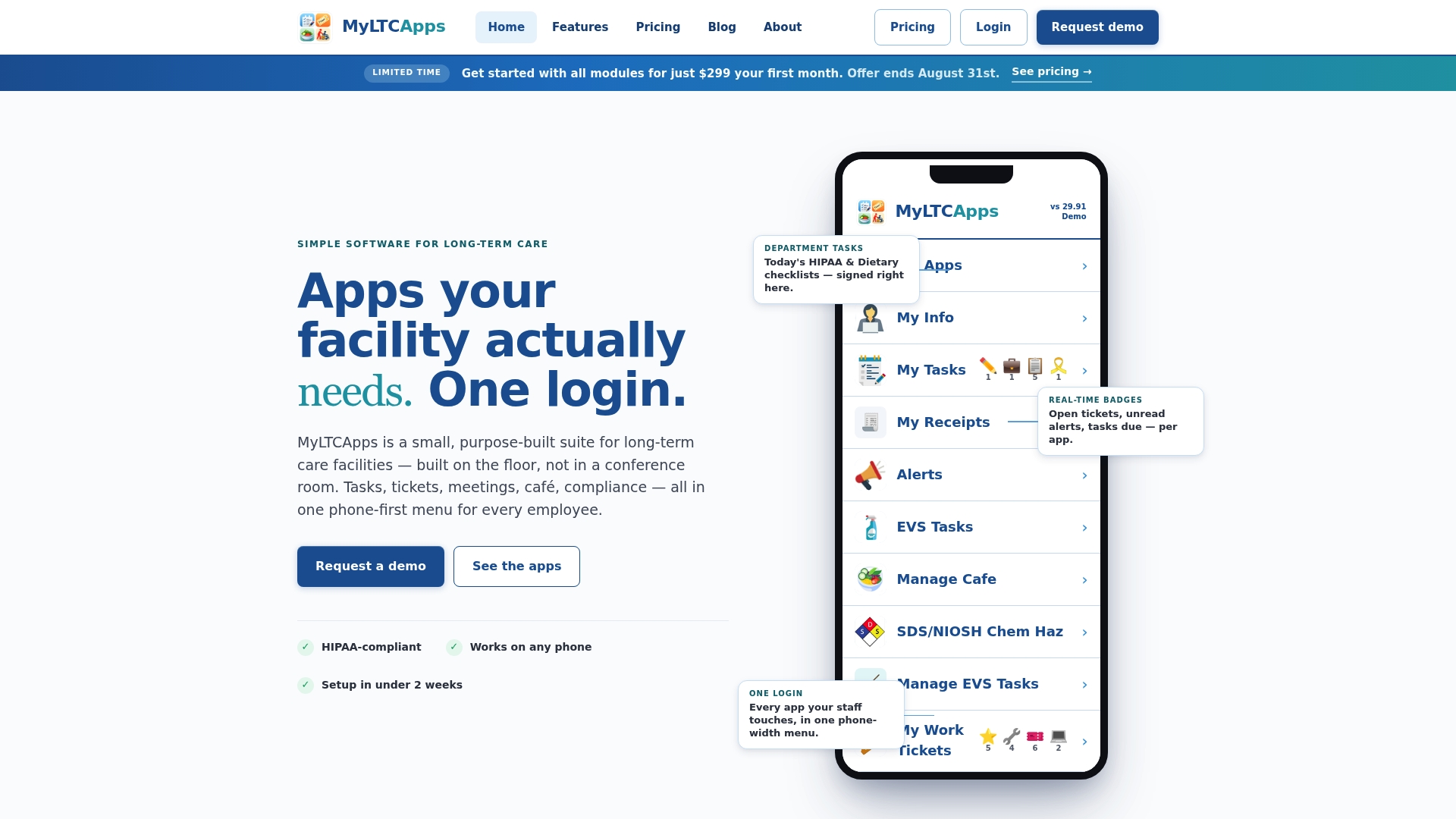
MyLTCApps offers Shift Scheduling as part of a phone-first suite for long-term care and skilled nursing facilities, alongside alerts and notifications, tasks, work tickets and compliance tools. It is designed so your staff see schedule updates and alerts on the phone they already carry.
Plans are priced per facility per month and published on the pricing page: I Just Want That at $199 per month, Starter Pack at $299 per month, Growth Pack at $499 per month and Premium Pack at $792 per month. The pricing page shows what each plan includes, so you can match modules to the changes you need to notify.
FAQ
Do we legally have to notify staff of schedule changes?
It depends on your location and whether the law covers your facility. San Francisco, Oregon and Connecticut each have rules on advance notice and on how changes must be communicated, and many apply only to certain industries or employer sizes. Ask your employment attorney which rules cover you, and use the notices above as a baseline either way.
Is a text message enough as notice?
In the examples above, text message is an accepted way to notify employees of a schedule change, alongside phone calls, email and in-person conversation. Keep a record of what was sent and when. Asking for a confirmation of receipt gives you proof the message arrived.
Why am I not getting schedule notifications on my phone?
Start with the basics: the app’s notification permission, any do not disturb or focus mode, battery restrictions and whether you are still signed in. For calendar apps, also check that notifications are set for that specific calendar and event, as Google’s help page explains. If everything is on and alerts still fail, ask your manager to confirm your phone number or email on file.
How do we avoid alert fatigue?
Send each type of change only to the people it affects, grouped by role, unit and shift. Reserve urgent alerts for same-day changes and coverage needs, and let routine updates arrive as quieter notifications. Review who is receiving what every month.
Sources
- San Francisco Fair Workweek Ordinance, Sec. 42.4
- Oregon BOLI: Predictive scheduling
- NWLC: Guidance and Best Practices for State and Local Fair Workweek Legislation
- Work Schedule Patching in Health Care (PMC)
- Shift Schedule Change Notification Template guide
- Google Calendar Help: Troubleshoot missing notifications
- Google Calendar Help: Change notifications on Android
- Guide: iPhone notifications not showing on lock screen